How To Disable Second Screen In Screenshots: Tutorials
To disable capturing a second screen in screenshots, use built-in tools to select a single monitor or area. On Windows, press Win + Shift + S; on macOS, press ⌘ + Shift + 5 and choose “Capture Selected Portion” to avoid including other screens.
If you’re using multiple screens and only want to capture one, there’s no universal “block this monitor” toggle.
The fix depends on your device. The goal is simple: make your screenshot tool focus on one display, not the entire setup.
Here’s how to handle it across platforms, both temporarily and permanently.
Windows
If you want a fast solution:
- Press Win + P → PC Screen Only to disable the extra monitor temporarily.
- Or just unplug it.
If you need both screens on:
- Use Alt + Print Screen to capture only the active window.
- Or press Windows + Shift + S and draw a region on the screen you want.
Most of the third-party tools also help. I use Apps like Greenshot or Snagit as it let you restrict screenshots to one monitor.
Permanent Options
Windows doesn’t offer a “never include monitor #2” setting.
Bur, what you can do is
- Disable screenshot shortcuts through Group Policy.
- Remap or disable the Print Screen key using registry edits or key-mapping software.
If you need a more advanced setups, some users run screenshot tools inside a virtual machine so the app never sees the second display.
macOS
You can disconnect the display before taking the shot
- Or use selective capture:
- Cmd + Shift + 4 → drag and screenshot only the area you need
- Cmd + Shift + 4 → Space → capture a single window
Another trick i learnt is to mirror displays.
So, basically when both screens show identical content, full-screen screenshots effectively look like single-screen captures.
Permanent Options
Similar to windows, macOS also doesn’t let you disable screenshots for just one display.
But what you can do is remove shortcuts entirely:
Settings → Keyboard → Shortcuts → Screenshots → Uncheck the hotkeys.
In managed or enterprise setups, the admins can fully block screenshot access through configuration profiles.
Android
For Android users, i got good news as screenshots almost always capture only the device’s display, even when casting or mirroring.
- Just stop casting if you want total privacy.
- Take the screenshot as usual: Power + Volume Down.
Some corporate or app-level restrictions can disable screenshots, but there’s no setting to block external displays because Android doesn’t treat them as part of the UI.
iPhone / iPad (with HDMI or AirPlay)
iOS also behaves like Android and screenshots only capture the device screen, not what’s streaming externally.
Disconnect the AirPlay if you want zero risk.
Next, take a screenshot normally using Side Button + Volume Up (or Home + Power on older devices).
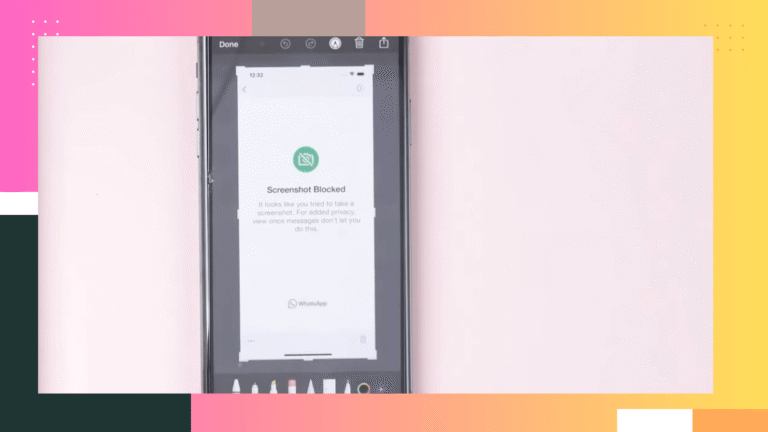
If you need to block screenshots entirely:
- Use Guided Access temporarily.
- Or use MDM/device restrictions in enterprise environments.
ChromeOS
By default, ChromeOS captures all connected screens.
To limit the capture:
- Press Ctrl + Shift + Show Windows → select region or window
- Or open the Screen Capture tool from the system tray and use partial or window mode.
You can also switch to mirror mode or disable one of the displays before capturing.
There’s no built-in monitor exclusion.
Admins can disable capture shortcuts on managed devices, but everyday users must rely on partial selection tools or turn off the second display.
Linux (Ubuntu, Fedora, KDE, etc.)
Most Linux desktops grab all monitors when you press Print Screen.
Workarounds are,
- Disable the second display in system settings before capturing.
- Or use selective shortcuts:
- Alt + Print Screen → active window
- Shift + Print Screen → select region
Tools like Spectacle, Flameshot, or GNOME Screenshot let you choose windows or areas.
You can also try this method.
- Disable the Print Screen key using gsettings/dconf
- Remove or replace the screenshot utility
- Use xrandr scripts to keep the secondary monitor disabled at login
Linux gives flexibility, but no one-click “ignore this monitor” setting.
The Bottom Line
There’s no universal OS setting that tells the computer to ignore your second monitor in screenshots.
Your workable options are:
- Turn off or disconnect the second display
- Use tools that let you capture a specific region or window
- Disable screenshot shortcuts entirely if privacy matters more than convenience