How To Screenshot On Snapchat Without Them Knowing iPhone | 3 Methods
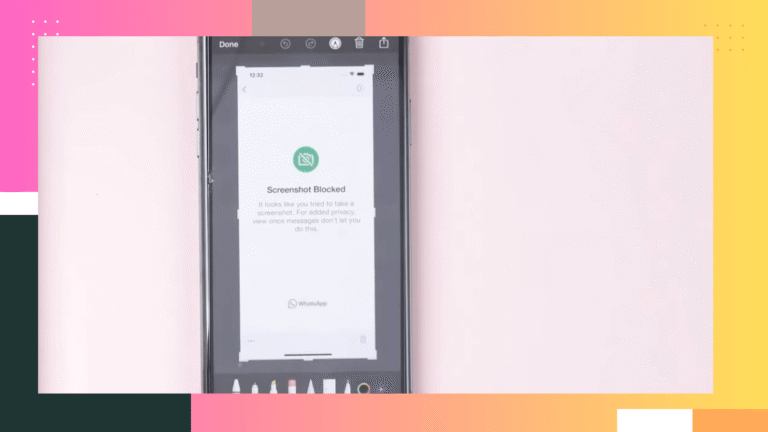
You can’t screenshot Snapchat on an iPhone without triggering notifications inside the app. The only safe methods are using a second device to photograph the screen or mirroring your iPhone to a computer and capturing it there.
That said, there are a few sneaky tricks people have tried to get around it… some actually work, others… not so much. Let’s break down what’s possible (and what’s not).
So, Snapchat’s pretty strict about screenshots.
Anytime you screenshot or record a Snap, chat, or story on an iPhone, the sender gets a heads-up, usually through little icons or messages in the chat/story viewer list.
This guide breaks down how those notifications actually work, what each alert means, and which tricks (if any) actually avoid getting caught.
How Snapchat Detects Screenshots on iPhone
Snapchat automatically recognizes standard screenshots and screen recordings taken on an iPhone. When you capture someone’s content, the sender receives an in-app alert.
Snapchat uses the following notification methods:
Snaps (photos or videos)
Taking a screenshot or screen recording of a Snap triggers a double-arrow screenshot icon in the chat.
The sender may also see an “opened + screenshot” message.
Chats
If you screenshot a chat, Snapchat lets both people know.
You’ll see a little screenshot icon in the conversation list, and the other person gets a message saying you took a screenshot.
So yeah… pretty obvious when it happens.
Stories
Same here as chat. Screenshot someone’s Story and Snapchat will basically put a neon sign over your name in their viewer list.
They’ll see it immediately, so unless you want to start a “why did you screenshot my Story?!” chat, you might wanna think twice.
Screen Recording
Honestly, don’t even bother with the iOS screen recorder, Snapchat catches it just like a regular screenshot.
Basically, anything you try in the app is gonna blow up in your face. There’s no sneaky way around it; Snapchat’s basically built a trap for your screenshots.
Screen recordings are treated the same as screenshots.
There is no option within Snapchat or iOS to disable these notifications.
How to Screenshot Snapchat Without Notifying on iPhone
Snapchat’s notification system blocks most methods, but some external approaches still work. Below are common methods and whether they are currently effective.
1. Use a Second Device (Works)
Alright, so if you’re hoping to screenshot a Snap without getting caught… your options are basically non-existent inside the app.
The only thing that actually works consistently is using a second device.
How it works:
Open the Snap or Story on your iPhone and use another device’s camera (phone, tablet, or camera) to photograph or record the screen.
Snapchat can’t detect an external camera, so you’re safe on that front.
Downsides? Quality might not be perfect, but hey, at least you won’t get the dreaded screenshot notification.
2. Screen Mirroring to a Computer (Works)
Another one that actually works is screen mirroring.
Hook your iPhone up to a Mac or PC (QuickTime on Mac works great) and mirror your screen.
Then take the screenshot or record it from your computer instead of your phone.
Since Snapchat only cares about what happens on the phone itself, it won’t know a thing.
Basically, it’s like sneaking in through the back door while Snapchat’s busy guarding the fronte’s display to a computer or TV also avoids detection.
How it works:
- Connect your iPhone to a Mac or PC and mirror the screen (e.g., using QuickTime Player on macOS).
- Capture the screenshot or recording on the computer instead of the phone.
3. “Half-Swipe” Recording Trick (Unreliable)
The idea is you start a screen recording from the main feed and kinda sneak into a chat without fully opening it.
Sounds sneaky, right? Yeah… good luck.
It might work sometimes, but it’s super inconsistent and Snapchat patches this stuff all the time.
How it works:
Start a screen recording from the main feed and lightly swipe into a chat without fully opening it.
4. Airplane Mode + Force-Close (Does Not Work)
Used to work on older Snapchat versions, take a screenshot offline, no one knows.
But, modern Snapchat logs that screenshot locally, and the second your phone reconnects, the sender gets the alert.
Force-closing, clearing cache, whatever hacks you try… it’s all useless.
5. AssistiveTouch or Software Screenshot Shortcuts (Does Not Work)
Snapchat treats these just like hitting the hardware buttons, so the other person still gets the notification.
No sneaky shortcuts here, folks, Snapchat’s basically the hall monitor that catches everything.
Snapchat detects these the same way as hardware button screenshots.
6. Browser or Web Workarounds (Not Applicable)
And nope, browser or web tricks aren’t gonna help on iPhone.
You can’t sneak around Snapchat via Safari or any web app, iPhone content is trapped in the app.
Snapchat frequently updates its detection system, and most in-app or iOS-based methods no longer bypass alerts.
How to Screenshot Snapchat Normally (With Notification)
If you don’t care about getting caught and just wanna take a normal screenshot, it’s easy, just use the usual iPhone shortcuts.
Screenshots
- On iPhones with Face ID: Press Side Button + Volume Up.
- On iPhones with Touch ID: Press Power/Top Button + Home Button.
The screenshot is saved to the Photos app, and Snapchat immediately notifies the sender.
Screen Recording
- Add Screen Recording to Control Center if needed.
- Start recording, then open the Snap or chat.
Snapchat will treat this as a screenshot and notify the sender once the content is opened.
Legal and Ethical Considerations
Okay, real talk for a sec, just because you can screenshot doesn’t mean you should.
Screenshotting or recording Snapchat content without permission raises privacy and ethical concerns:
- People expect their content to disappear. Respect that.
- Sharing screenshots without consent can actually run afoul of privacy laws.
- Explicit content involving minors? Don’t even think about it, serious legal consequences.
- Copyright still counts, don’t steal other people’s creations.
- Violating Snapchat’s Terms of Service? Also a thing.
Always seek permission before saving or sharing someone else’s content.
In short, Snapchat’s screenshot system is basically unskippable. Most tricks either don’t work or get patched fast.
If you really need a Snap, using another device or just accepting the notification is your safest bet. Play it smart and respect people’s content, Snapchat isn’t called “the vanishing app” for nothing.